

Keep manuals, warranties and home documents together
Add a pile of paperwork at once, say what each file is and what it belongs to, and keep warranties and manuals with the things they cover.
What the home documents screen keeps
The boiler manual is in a drawer, the warranty is in an email and the receipt is a photo on someone's phone. Documents in Mekozo keeps receipts, invoices, quotes, warranties, manuals and other paperwork for one property in one place, filed by what each one is and what it belongs to. Warranties and manuals also appear on the item they cover, and in your Property Record, so the next question starts in one place.
Step by step
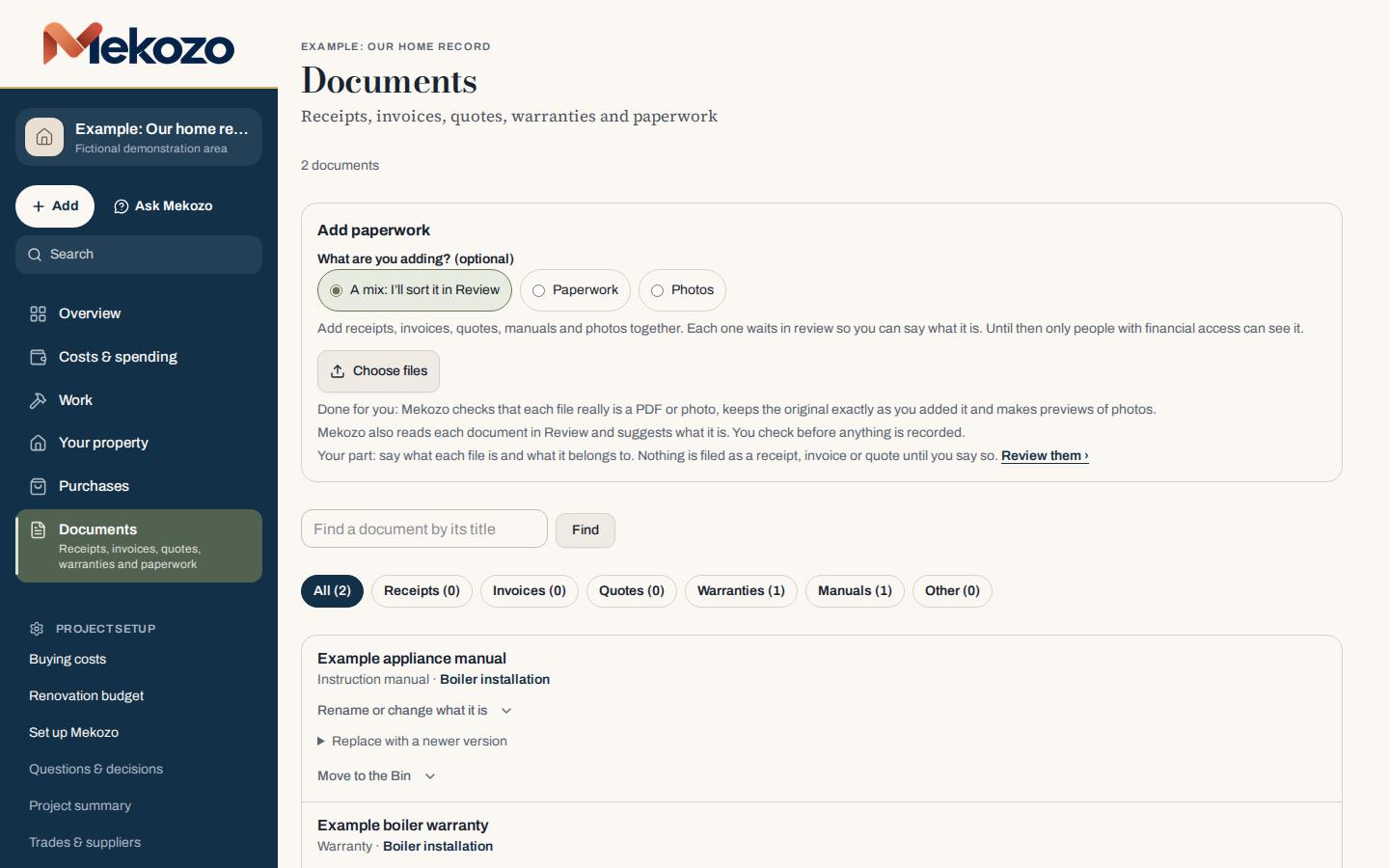
- Open Documents. Under Add paperwork, say what you are adding: A mix: I'll sort it in Review, Paperwork or Photos. If you are not sure, choose a mix.
- Choose Choose files and pick one file or a whole pile. Mekozo checks that each file is a PDF or photo and keeps the original exactly as you added it.
- Choose Review them. For each file, say what it is and what it belongs to: a purchase, a piece of work, a room or the whole property. Mekozo reads each document and suggests what it is; you check before anything is recorded. Nothing is filed as a receipt, invoice or quote until you say so.
- Give each document a name you will recognise later, such as the product and supplier. Use Rename or change what it is to correct one.
- For an appliance, boiler or other item, open it in Purchases and choose Warranties, then Add a warranty. Add the start and end dates and the reference or policy number, then Add the warranty document.
- On the same item, open Manuals & documents to add the manual, or a link to a manual or the manufacturer's page.
- To find something later, use the filters (Receipts, Invoices, Quotes, Warranties, Manuals, Other) or Find a document by its title.
When a document changes
If a supplier sends a newer version, use Replace with a newer version rather than adding a second copy. If you added something by mistake, choose Move to the Bin; you can restore it from the Bin.
Who can see what
Files waiting in Review can only be seen by people with access to financial information, because a receipt or invoice shows what you paid. Once filed, documents follow each person's project permissions. If someone cannot see a file, check their access in Share & access before uploading another copy.
Common mistakes
- Leaving files unsorted. A pile waiting in Review is safe but hard to use. Sort it while you still remember what each file is.
- Filing everything under the whole property. Put a warranty with the item it covers, so it shows up when you look at that item.
- Vague names. "Scan 0042" will not help you in five years. Use the product, the supplier and the room.
- Uploading duplicates. Replace with a newer version instead, so there is one current copy.
- Leaving the page too soon. Check the upload has finished before you move on.
For what to keep and why, read How to organise your house documents in one home file.
Questions people ask
What kinds of file can I add?
PDFs and photos. You can add receipts, invoices, quotes, warranties, manuals and photos together and sort them afterwards.
Where do I see when a warranty ends?
Open the item in Purchases and choose Warranties. Each warranty shows its reference and the dates it runs from and until.
Can I bring in paperwork from before I started using Mekozo?
Yes. Use Add earlier information to add a whole pile at once, then connect each file to the right place in Review.
Bring the whole picture home.
Budgets, quotes, payments, documents and decisions in one place
30 days free. No card needed.
Monthly, with no annual plan. The Terms of membership set out the details.