

Get started with a project
Choose what you want help with, give the project a name and a currency, answer the setup questions you can, then add one thing that matters to your next decision.
What a project is
A project in Mekozo holds everything about one property: a search, a purchase or a home you own. Its budget, rooms, costs, documents and the people helping all live inside it. If you are comparing several properties, keep them together in one search project rather than creating one for each.
You do not need everything ready to start. Begin with what you know and add detail as you learn more.
Step by step
- Sign in and open Projects. Choose Create your first project, or New project if you already have one.
- Under What would you like Mekozo to help you with?, choose the option closest to where you are:
- Find the right property: build what you are looking for, compare properties and test affordability.
- Buy a property I've found: keep the purchase, costs, dates and decisions together.
- Plan work on my property: shape the work, places, quotes and budget before it starts.
- Manage work already underway: catch up what has happened, then manage what comes next.
- Keep track of my home: keep purchases, documents, warranties and property history easy to find.
- Enter a Project name you will recognise, such as the street or "Our next home".
- Enter the Property address or area. Just the area is fine if you do not have an address yet.
- Choose the Currency. All amounts in the project use it, and it cannot be changed later, so pick the currency you will pay in.
- Choose Create project.
- On Set up your Mekozo, choose Start setup and answer a few questions about the property or project. Mekozo uses them to tailor what you see and pre-fill your financial picture. Answer what you can and use Skip for now for the rest; you can return with Continue setup.
- When you finish, Mekozo suggests a first useful step for your situation, such as building your Property Brief, adding a quote or adding the work you are planning.
If work has already started
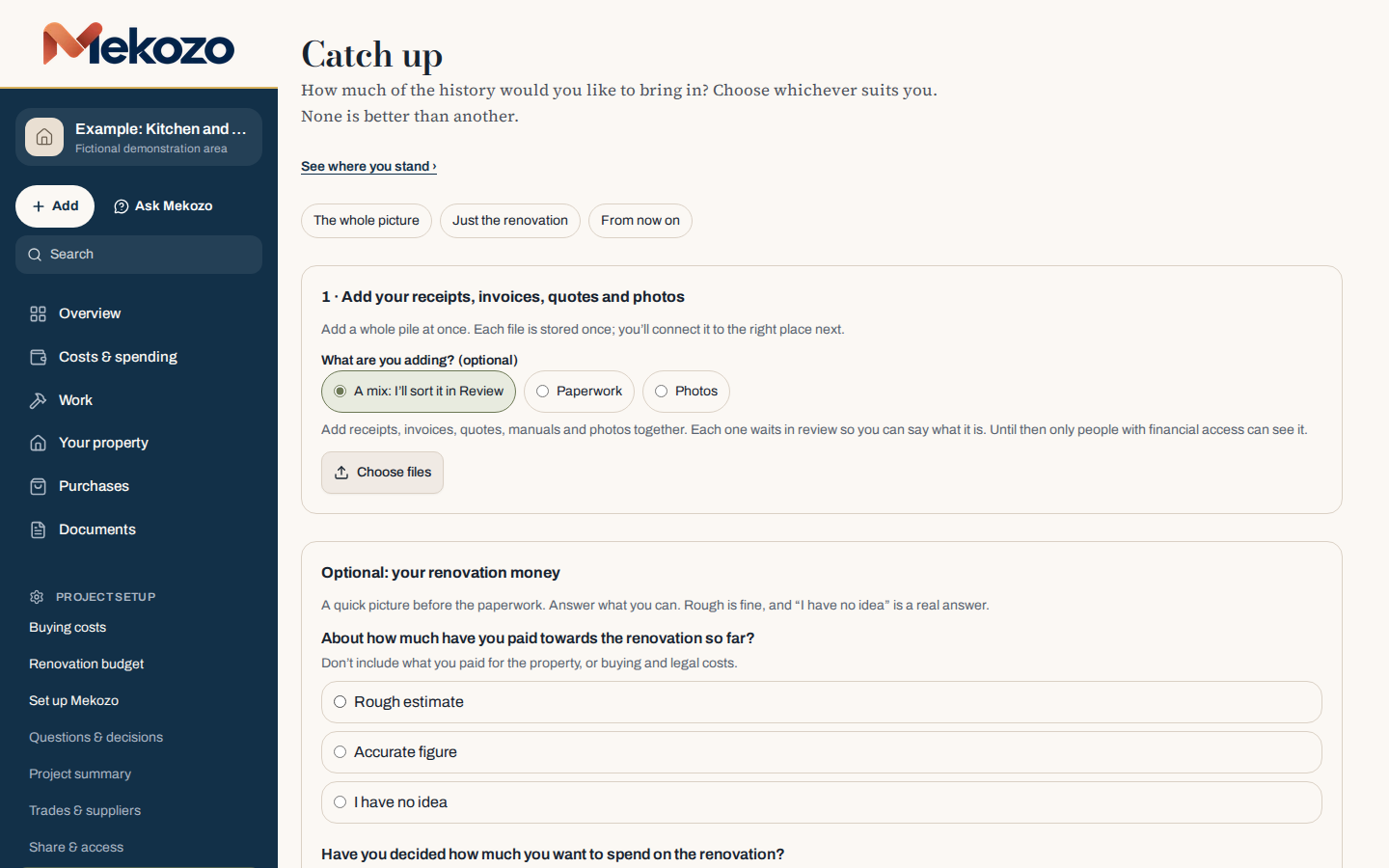
Choose Manage work already underway and use Add earlier information to catch up. Choose how much history to bring in (The whole picture, Just the renovation or From now on), then add your receipts, invoices, quotes and photos in one go. A rough figure for what you have paid so far is fine, and "I have no idea" is a real answer.
Make one useful entry
The best first entry is the one behind your next real decision:
- Looking: add the first property you are considering, or your three must-haves.
- Buying: add the agreed price and the buying costs you know.
- Planning: add one piece of work and a rough estimate.
- Underway: record the next payment that is due.
- Your home: add the boiler, roof or kitchen and its warranty.
Common mistakes
- Picking the wrong currency. It cannot be changed later. Choose the one the property and the work are paid in.
- One project per house you view. Keep every candidate in one search project so you can compare them.
- Trying to fill everything in on day one. Skip what you do not know. Unknown is better than a wrong guess.
- Creating a second account to start again. Use the same account and create another project instead.
For how to describe the work before you price it, read Scope of works: what to include, with an example.
Questions people ask
Can I change the project name or location later?
Yes. Open Project settings to change the name and place. The currency cannot be changed once the project is created.
What happens to a search project when I buy?
The search finishes when your purchase completes and is kept as history, so your viewing notes and comparisons are still there.
Is there a free trial?
Yes. Early Member starts with a 30-day free trial and no card is needed. After the trial, your projects become read-only and nothing is deleted.
Bring the whole picture home.
Budgets, quotes, payments, documents and decisions in one place
30 days free. No card needed.
Monthly, with no annual plan. The Terms of membership set out the details.